Introduction
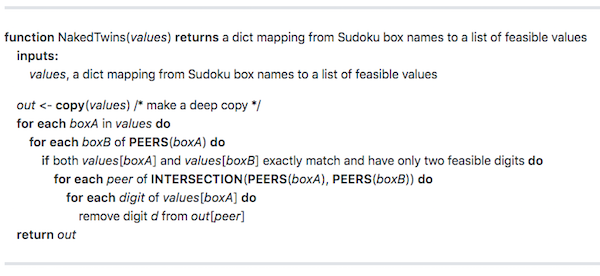
In this project, you will extend the Sudoku-solving agent developed in the classroom lectures to solve diagonal Sudoku puzzles. A diagonal Sudoku puzzle is identical to traditional Sudoku puzzles with the added constraint that the boxes on the two main diagonals of the board must also contain the digits 1-9 in each cell (just like the rows, columns, and 3x3 blocks). You will also implement another strategy called "Naked Twins", described here
Getting Started
The easiest way to complete the project is to click "next" below to open a Workspace that has already been configured with the required files and libraries to support the project. If you use the Workspace, you do NOT need to perform any of the setup steps outlined below ( 1 - 3 steps).
If you would prefer to complete the exercise in your own local environment, then follow the steps below:
Setup:
- Follow the instructions from before the first project to install and activate the aind conda environment in a terminal window.
- Clone the AIND coursework files from github (or open your local copy)
(aind) $ git clone https://github.com/udacity/artificial-intelligence
- Open the artificial-intelligence/Projects/1_Sudoku folder in your preferred IDE or text editor, and follow the instructions in the project readme to complete the TODO items
Running Test Cases
- You can run a few local test cases by running the following command within the project folder in your terminal:
(aind) Projects/1_Sudoku $ python -m unittest -v
- You must pass a more challenging set of test cases hosted on a remote server before you can complete the project by running the following command within the project folder in your terminal. You can find more information on the Project Assistant here, including the PA FAQ here, and the PA Troubleshooting Guide here.
NOTE: Students who authenticate with Facebook or Google accounts must follow the instructions on the FAQ page to obtain an authentication token.
(aind) Projects/1_Sudoku $ udacity submit
Submitting the work
- Once your code passes all of the local test cases and all of the remote test cases from running
udacity submit, you need to submit the exact zip file created by the remote test script (named something like "sudoku-######.zip") in the classroom for this project.
Evaluation
This project is evaluated according to the rubric here. You will receive full credit on this project for passing all of the test cases; unlike the other projects in the AIND program there is no manual code review for submissions that pass all test cases for the Sudoku solver.